The Accessibility tab is where you will find your Autism card and communication tools.
You can also add emergency contact numbers here
Your Autism card
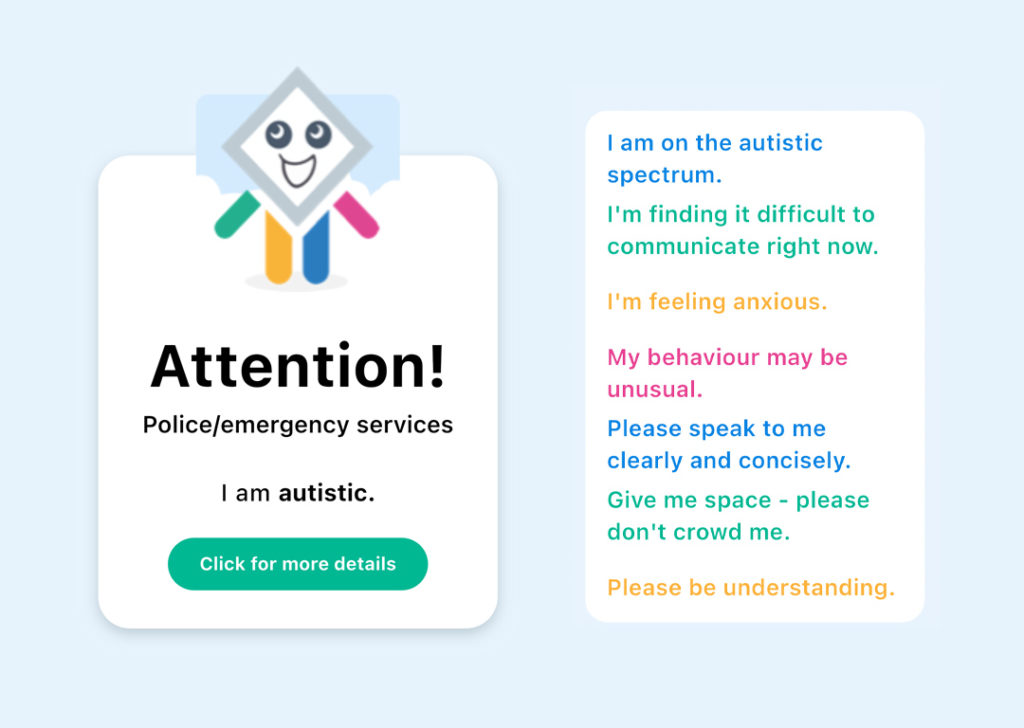
The Autism card is customisable allowing you to input the information you need to communicate to others.
To view the information on your autism card and to edit the card click on the “For more details” button.
To edit your autism card click on the pencil icon in the top right hand corner.
Editing your Autism card
When you click on the pencil icon you will see a set of statements with tick boxes.
You can untick any you do not think apply to you
To add personal statements click on the + sign next to Custom at the bottom of the screen
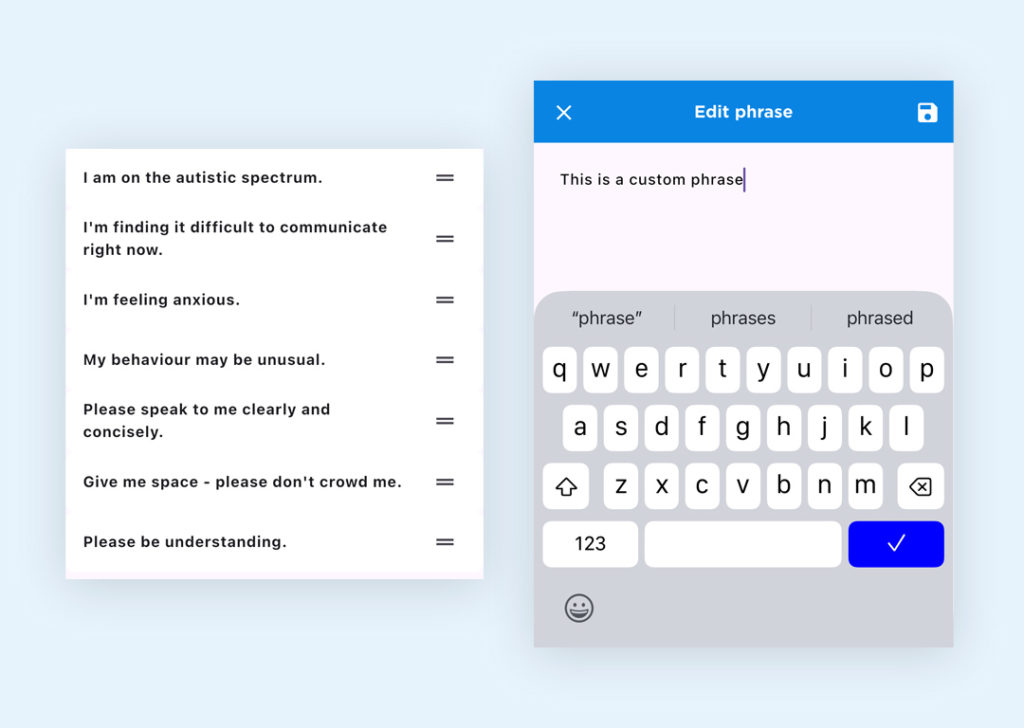
You will see a prompt to enter your phrase
When you have entered it click on the Save icon in the top right hand corner
You can add more than one custom phrase
Your custom phrase(s) will be at the bottom of the screen and will appear on your autism card.
You can change the order of your phrases. To do this click on the arrows in the top right hand corner
To move a phrase up or down the list click on the double lines next to the phrase and drag it to the order you want it to appear on your card
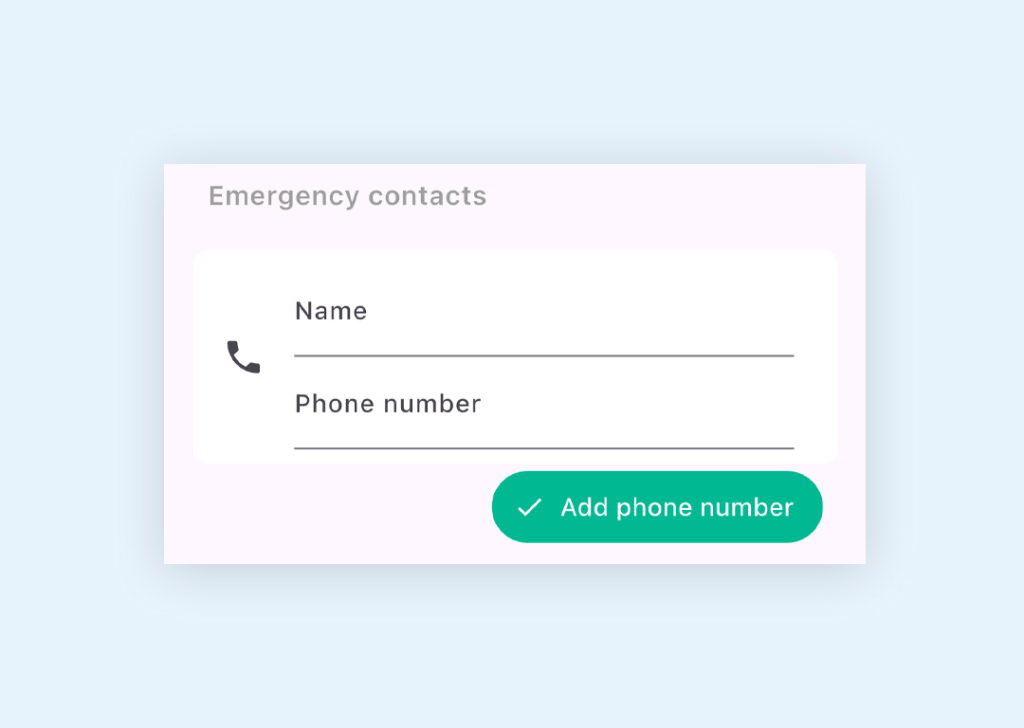
Add an Emergency Contact
To add a contact number click on Add new contact
Type in the name of the person you wish to list as emergency contact, followed by their telephone number and click on “Add phone number”.
You can add more than one contact. If you click on the saved number you will be able to phone or message your contact without leaving the app.